
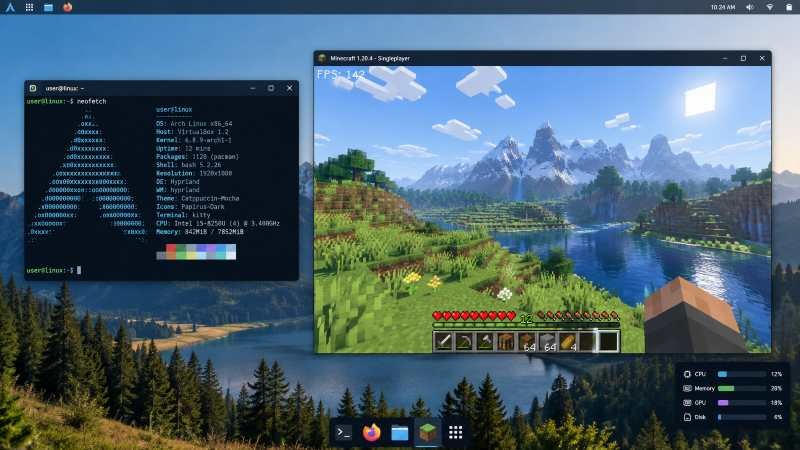
PlugBoxLinux keeps system overhead low, which gives Minecraft more room to run. That advantage only helps if you set things up properly. Here is a practical way to get better frame rates when playing and more stable performance when hosting a server.
Get the Basics Right First
Update the system before anything else:
Bash
sudo pacman -SyuRestart if a new kernel comes in. Next, install a working Java runtime. Minecraft’s needs change with each major version, so check what your chosen release requires. For most current versions a recent OpenJDK works:
Bash
sudo pacman -S jdk-openjdkConfirm with java -version. If you have a dedicated graphics card, make sure the correct drivers are installed. NVIDIA users usually need the proprietary package, AMD and Intel work with the open drivers. Skip heavy desktop environments when possible. A light option like XFCE is fine for playing; a server can run without any desktop at all.
Close programs you do not need. Background services and open browser tabs quietly eat memory and CPU cycles that Minecraft could use.
Improve Client Performance
Open the Minecraft launcher, select your installation, and edit the JVM arguments. A sensible starting point looks like this:
text
-Xmx4G -Xms2GGive the game roughly half the free RAM on the machine, never the entire amount. Leaving space for the operating system prevents stuttering later.
Inside the game, lower a few video settings that cost the most performance:
- Render distance between 8 and 12 chunks
- Graphics set to Fast
- Smooth lighting on Minimum or Off
- Particles reduced
- Clouds turned off or set to Fast
These changes cut work for both the CPU and GPU while still leaving the world readable.
The biggest jump usually comes from performance mods. Install the Fabric loader, then add Sodium for rendering, Lithium for game logic, and FerriteCore for lower memory use. Entity Culling helps when many entities are nearby. These mods improve frame rates without changing how the game looks or plays. Avoid stacking every optimization mod you find; conflicts are common and hard to diagnose.
Store the game and world files on an SSD. Chunk loading and saving feel noticeably snappier on solid-state storage.
Tuning a Server
For multiplayer, Paper or Purpur is almost always better than the vanilla jar. Both include many performance improvements while still supporting most plugins.
Start the server with enough memory and the –nogui flag so no graphical window opens:
Bash
java -Xms2G -Xmx4G -jar paper.jar --noguiMatch the numbers to your hardware and leave a buffer for the system. Many people also add a set of carefully chosen garbage-collection flags that reduce lag spikes. Keep the initial and maximum heap the same size.
In the configuration files, lower the view distance and simulation distance. Reduce mob spawn limits and entity activation ranges if the server feels heavy. Pre-generating the world with a tool such as Chunky stops players from triggering expensive chunk generation while they explore.
Watch the server’s tick rate. Tools like the Spark plugin show where time is being spent so you can fix the real problem instead of guessing.
Extra Steps That Help
Keep Java and the system updated. Test one change at a time so you know what actually improved performance. On very low-end hardware, drop the render distance further and avoid large mod packs. For a server, schedule occasional restarts if memory use slowly climbs over long sessions.
Common mistakes include giving Minecraft almost all available RAM, running high render distances on modest CPUs, and leaving unnecessary services active on a system that should stay lightweight.
Quick Answers
How much memory should Minecraft get?
Two to four gigabytes works for most single-player or lightly modded sessions. Servers need more once several players join, but always leave headroom for the operating system.
Do I need a desktop environment?
Only if you are playing the client, servers run cleanly without one.
Can I use performance mods?
Yes. Fabric mods such as Sodium and Lithium work the same way they do on other Linux systems once Java is installed.
Is PlugBoxLinux automatically faster than other distributions?
It uses fewer resources at idle, which helps on limited hardware. Final performance still depends on Java settings, game options, and whether you use optimized server software or client mods.
A lightweight system only delivers better Minecraft results when the game itself is configured carefully. Follow the steps above, measure the difference after each change, and you should see smoother play and more reliable servers.
See Also: Information About Foxtpax Software: Features, Uses, and Benefits

Malik Bilal is a business strategist and Editor at Outstanders, specializing in business, technology, health, and general-interest content. With more than 4 years of experience in business and technology writing, he creates insightful, research-backed articles designed to educate, inform, and inspire readers. His expertise lies in breaking down complex topics into clear, actionable content while maintaining high editorial standards, accuracy, and trustworthiness.